Anchor SVG: What You Actually Need to Know Before Downloading
If you’ve searched for “Anchor SVG” recently, you’ve likely seen dozens of listings promising bundles—SVG, PNG, DXF, EPS, JPG—all wrapped up in a ZIP folder with claims like “instant download” and “300 dpi transparent background.” That sounds great. But before you click “Buy Now,” pause. Not all Anchor SVG files deliver what creators truly need—and many buyers discover critical gaps only after the download is complete.
What Anchor SVG Really Is (and Why It Matters)
An Anchor SVG isn’t a brand or software—it’s a vector graphic file format (Scalable Vector Graphics) depicting an anchor symbol, commonly used in nautical themes, branding, apparel design, signage, and digital content. Its value lies in scalability: it stays crisp at any size, from a tiny app icon to a 6-foot banner. Unlike raster formats (PNG, JPG), SVG retains clean edges and editable paths—ideal for cutting machines (Cricut, Silhouette), web graphics, or logo adaptation.
But here’s where confusion starts: “Anchor SVG” is often treated as a generic term—not a technical specification. A file labeled “Anchor SVG” might be well-structured with clean paths and grouped layers… or it might be a traced bitmap with jagged nodes, embedded rasters, or missing transparency. That difference doesn’t show up in the thumbnail—but it *does* show up when you try to resize it for a t-shirt mockup or cut it on your machine.
Common Oversights That Cost Time and Confidence
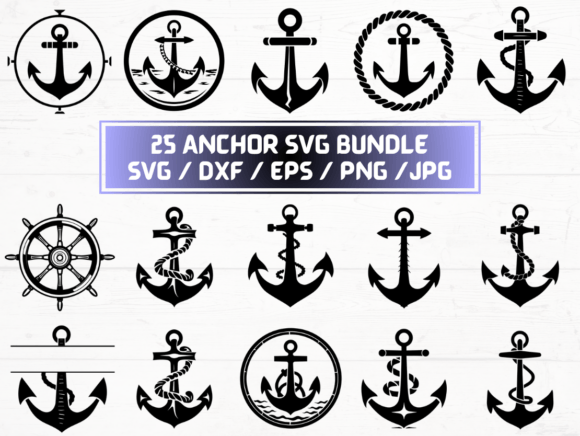
Assuming “25 SVG Files” means 25 usable, production-ready designs. In reality, many bundles include minor variations—rotated anchors, resized anchors, or color-swapped versions—that share the same underlying path structure. If you need distinct styles (e.g., minimalist, vintage, 3D-rendered, rope-wrapped), verify that each SVG represents a unique design—not just a transform applied in Illustrator.
Overlooking file hygiene. Some SVGs contain hidden layers, unused artboards, or embedded fonts converted to outlines poorly—causing rendering issues in web browsers or unexpected behavior in design tools. Others use non-standard namespaces or inline CSS that break compatibility with older Cricut Design Space versions or certain CMS platforms.
Misunderstanding DPI in vector contexts. The listing mentions “300 dpi PNG files”—which is accurate and useful for print—but then says “300 dpi SVG files,” which is technically misleading. SVGs have no DPI; they’re resolution-independent. That phrasing may signal a seller unfamiliar with core vector principles—a subtle red flag about overall file quality and documentation.
Why These Details Affect Real Work
Let’s say you’re a small business owner designing custom merch for a coastal café. You download an Anchor SVG bundle expecting to drop one into Canva, tweak colors, and export for your printer. Instead, the SVG opens with stray anchor points, misaligned strokes, or ungrouped elements—forcing hours of cleanup instead of creative work. Or imagine a freelance educator building a marine biology lesson: if the anchor icons render inconsistently across devices (some blurry, some pixelated), student engagement drops—not because the idea was weak, but because the asset wasn’t built for cross-platform reliability.
Similarly, hobbyists using Cricut machines may find DXF files listed but not optimized for cutting—paths aren’t closed, overlapping lines create double-cuts, or stroke widths are inconsistent. That leads to wasted material, failed cuts, and frustration—not inspiration.
How to Choose (and Use) Anchor SVG Files Wisely
Check the preview beyond the thumbnail. Reputable sellers provide multi-angle previews: zoomed-in path views, layer breakdowns, and real-world usage examples (e.g., “used on mug mockup,” “cut on Cricut Explore Air 2”). If only flat, stylized product shots appear—and no technical previews—ask yourself: what am I really buying?
Verify format purpose—not just presence. Having “25 EPS files” sounds professional, but EPS is largely legacy for print workflows. Unless you’re supplying assets to a commercial printer requiring EPS, prioritize SVG (for web and modern editors) and clean DXF (for cutting machines). PNGs should be truly transparent—not white-background JPGs renamed .png.
Test before scaling—or cutting. Open one SVG in a free tool like SVG Viewer or Inkscape. Zoom to 400%. Do edges stay sharp? Are there stray points or invisible objects? Try ungrouping—do elements separate logically? If everything behaves predictably, odds are high the rest of the set follows the same standard.
What to Confirm Before Hitting Download
- Transparency is native—not faked. A true transparent PNG has no background layer. Open it in Photoshop or GIMP: if you see checkerboard, it’s correct. If it opens with a white canvas, transparency wasn’t preserved properly.
- DXF files are single-layer, closed-path geometry. Import one into your cutting software. Does it appear as one unified shape? Or does it split into fragments, require manual welding, or throw “open path” warnings?
- EPS files are saved as Illustrator CC-compatible (not legacy CS6 or earlier). Newer EPS exports embed better metadata and avoid font substitution errors—especially important if you’ll edit text alongside the anchor.
- No hidden licensing restrictions. Even digital downloads may carry usage limits (e.g., “personal use only”). Read the license summary—not just the title. Commercial rights matter whether you’re selling stickers, licensing a brand, or posting on a monetized blog.
Better Alternatives When Standard Bundles Fall Short
If you need precision over quantity, consider fewer—but vetted—files. A single, well-built Anchor SVG with layered variants (outline, filled, distressed, outlined+filled), documented path structure, and clear usage notes often delivers more long-term value than 25 inconsistent ones. Some designers even offer editable source files (.ai or .fig) alongside SVG exports—giving you full control over stroke weight, corner radius, or negative space.
And remember: “instant download” doesn’t mean “instant integration.” Budget time to test, organize, and tag your files. Create a simple naming convention (e.g., anchor-minimal-stroke-2px.svg, anchor-rope-filled-dxf.dxf)—it saves minutes per project, adds up to hours saved per year.
You don’t need every Anchor SVG available online. You need the right ones—built thoughtfully, tested thoroughly, and documented honestly. When your next project calls for clarity, consistency, and confidence—not just convenience—that distinction makes all the difference.